Sending invoices by e-mail
Not every customer can receive Peppol. For those, Send via Email delivers the invoice as an attachment from Docnova, with a message you can edit before it goes out.
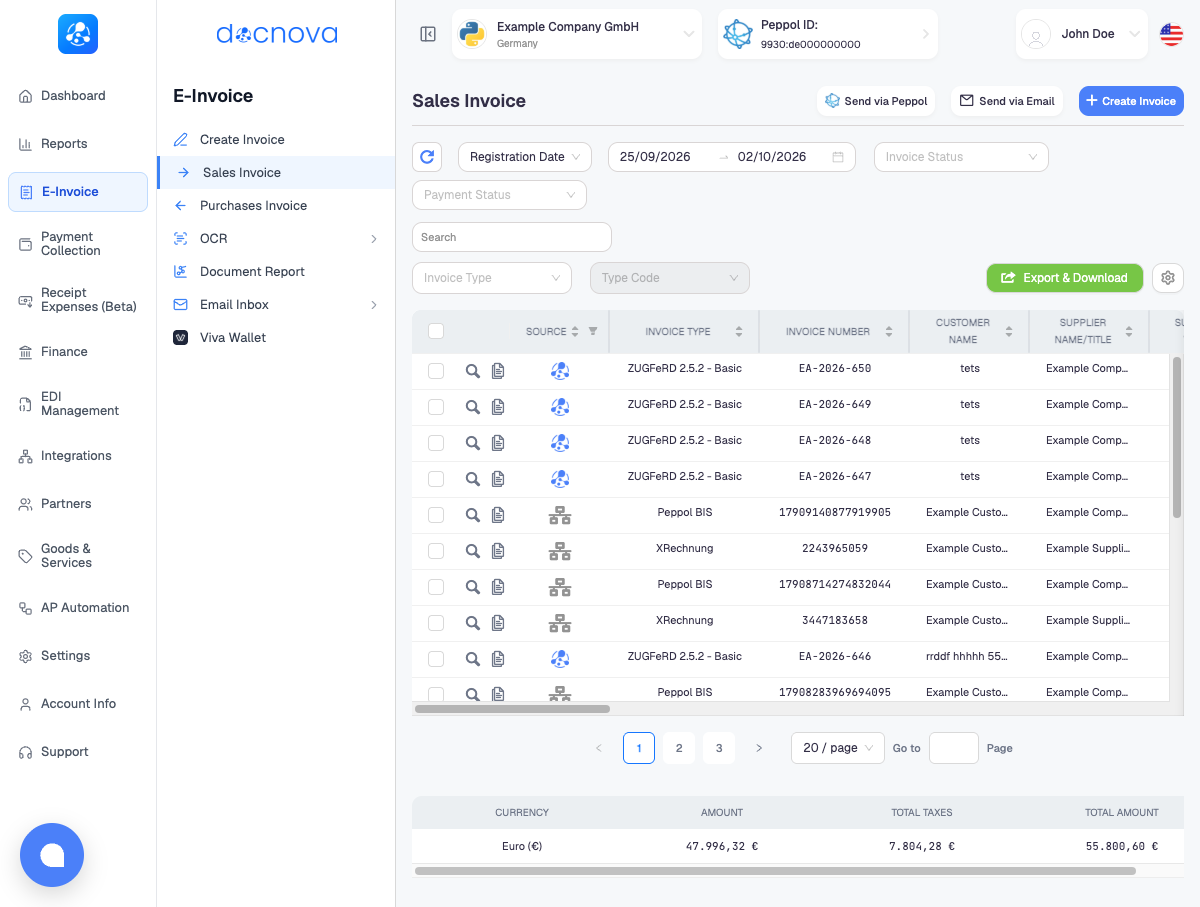
Send an invoice
- Open E-Invoice > Sales Invoice.
- Tick the invoice, or several invoices, you want to send.
- Click Send via Email. If nothing is selected, Docnova asks you to select at least one invoice.
- Complete the dialog described below and click Send.
You can also open a single invoice and send it from its detail view.
The Send via Email dialog
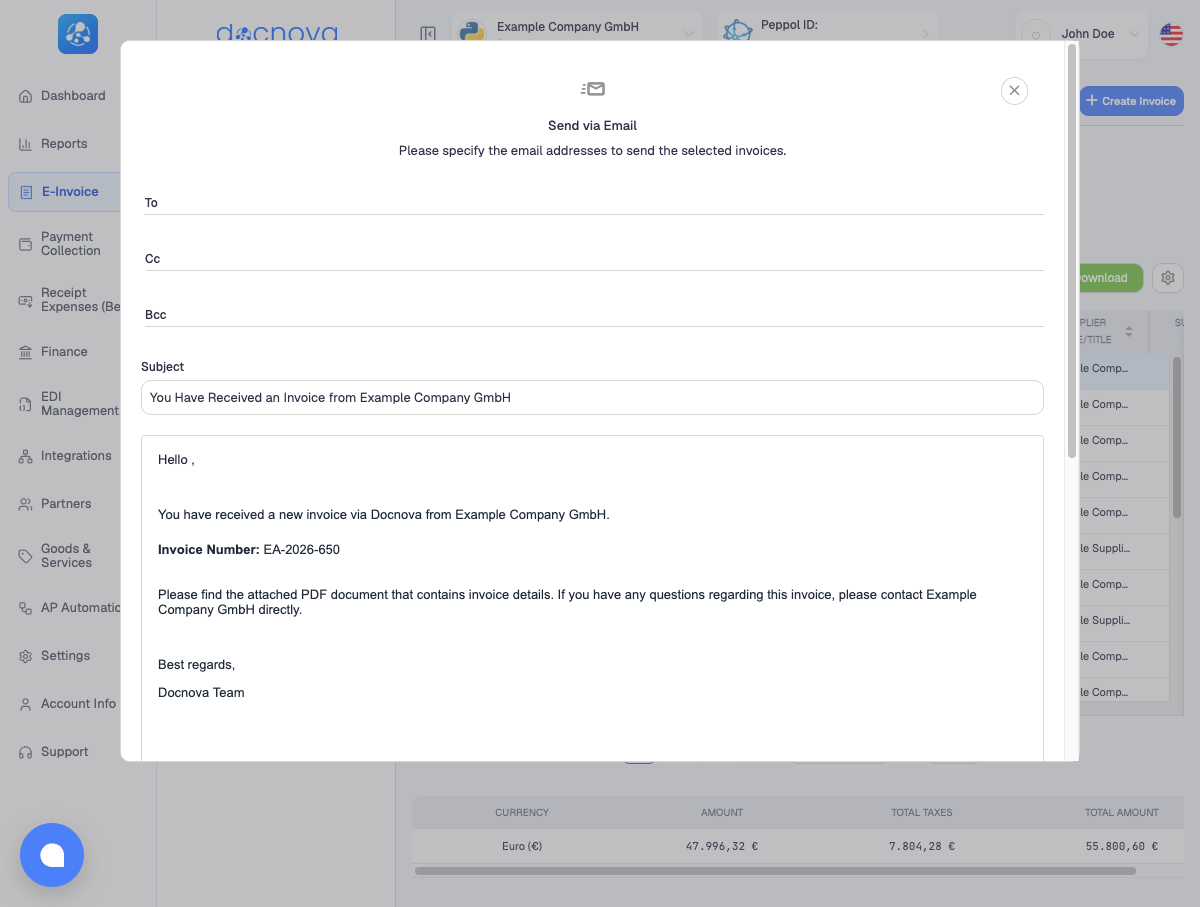
Recipients
- To, Cc and Bcc take one or more addresses.
- When you send a single invoice, To is pre-filled for you. Docnova uses the e-mail address saved in the customer's invoice preferences if there is one. Otherwise it uses the e-mail addresses found on the partner record and on the invoice itself, with duplicates removed.
- If the customer has no address on record, the field is empty. Type the address in; Send stays disabled until there is a recipient.
Subject and message
The Subject and the message body come with a default text that names your company and the invoice number, for example "You Have Received an Invoice from your company". Edit either one freely before sending. The invoice number is filled in for you.
When you select several invoices at once, they are sent in the same dialog, so write the message so that it suits all of them.
Attachment type and extra files
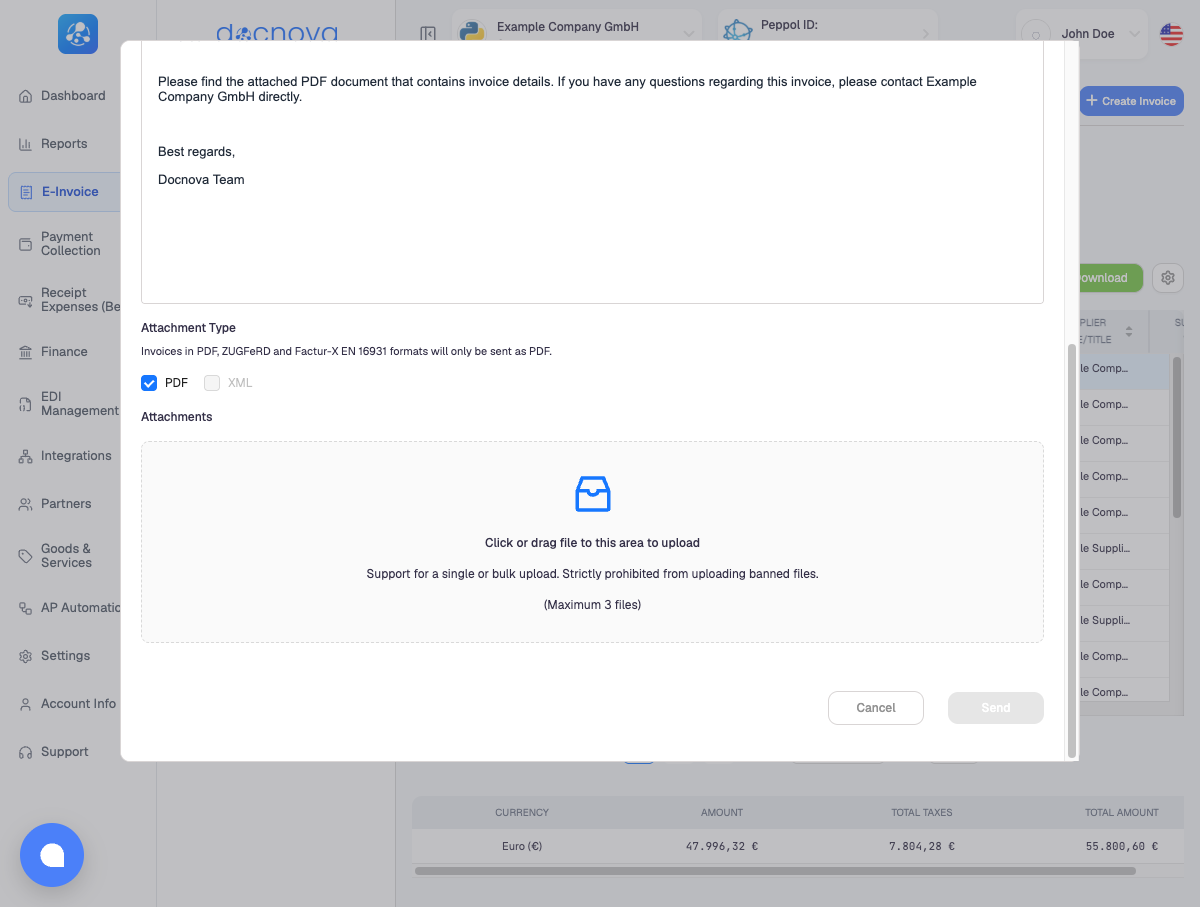
- Attachment Type chooses what is attached for each invoice: PDF, XML, or both. For XRechnung and Peppol BIS invoices both are available. Invoices in PDF, ZUGFeRD and Factur-X EN 16931 formats are always sent as PDF only, so the XML option is greyed out for them.
- Attachments lets you add your own files, such as terms or a delivery note. Click the area or drag files into it. You can add up to 3 files; banned file types are rejected.
Click Send to deliver, or Cancel to close the dialog without sending anything.
Which address does it come from?
By default the e-mail is sent from Docnova's own sender address. If your company sends from its own mailbox, configure that once under Settings > Email Settings > Outbound; invoices then leave from your corporate address. See Outbound.
After you send
The message goes to everyone in To, Cc and Bcc with the chosen attachments. If the customer says nothing arrived, ask them to check their spam folder and confirm the address you used.
E-mail or Peppol?
If the customer is on Peppol, prefer Peppol: the invoice arrives as structured data in their system. Use e-mail for customers without Peppol, or when they ask for a PDF.