Plan & Billing
Upgrade Subscription
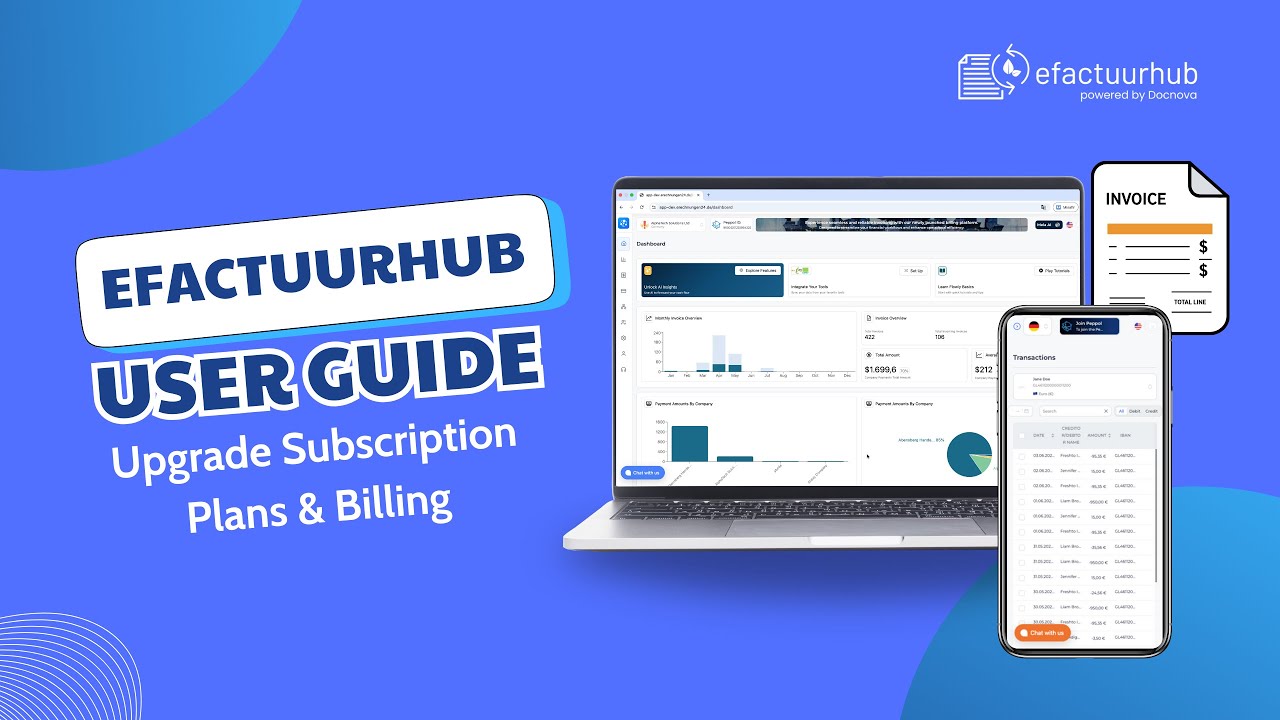
In this guide video, we explain the Plans and Billing section and walk through the full upgrade plan process. You will learn where to view your current plan, compare available plans, upgrade safely, and confirm billing details after the change.
What you will learn
- Where to find Plans and Billing
- How to review your current plan and available upgrades
- How to upgrade your plan step by step
- What happens after upgrading (access, limits, billing)
- Tips to avoid common upgrade issues
Try it here
https://app-fr.docnova.ai/
Cancel Subscription
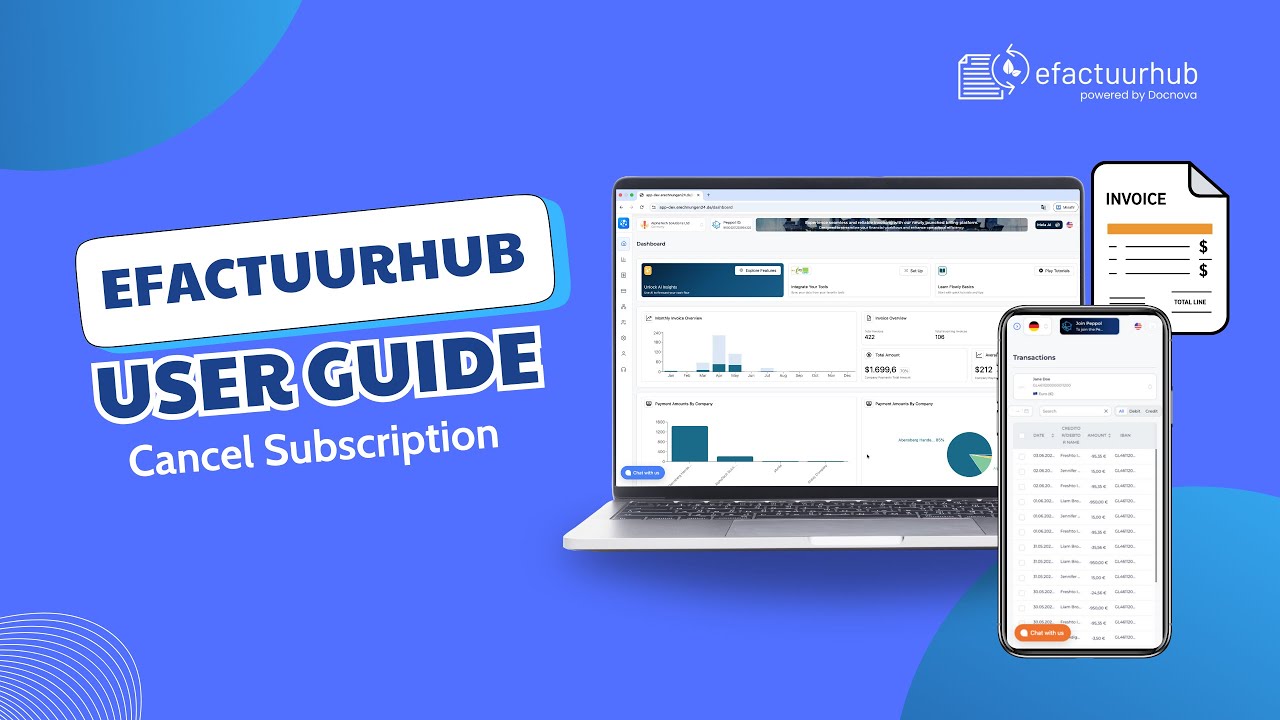
Guide video for canceling a subscription from the Plans and Billing section. Includes where to find the cancel option, what to check before confirming, and what happens after cancellation (plan status, access, and billing period).
Try it here
https://app-fr.docnova.ai/
Which plan am I on, and what does it limit?
Open Settings > Plan & Billing. The active plan is shown there, and the dashboard also carries it in the top right of the screen.
A plan is not a single quota. It sets a separate allowance for each of these:
| Allowance | What it counts |
|---|---|
| Users | People who can log in to the company |
| Companies and sub-companies | How many companies this subscription covers |
| Documents | Invoices and other documents processed |
| Initial documents | The one-off allowance included when the plan starts |
| Drafts | Unsent documents kept in Drafts |
| Partners | Entries in your partner list |
| Received e-mails | Documents accepted through the e-mail inbox |
| Receiver e-mail addresses | How many inbound addresses you can define |
| Expenses | Receipt and expense records |
| AI document creation | Invoices created with the AI option |
| Docnova AI | Other AI-assisted operations |
When something stops working — a partner that cannot be added, an inbound address that is refused — check the allowance before assuming a fault. Hitting a limit looks like a broken feature, not like a bill.
Where the plan comes from
A plan reaches your company by one of three routes, and this decides where you change it:
- Stripe — you subscribed yourself. Upgrades, downgrades, cancellation and invoices are in the billing portal, and payment questions belong there too.
- Admin portal — Melasoft set the plan for you, typically for an enterprise agreement. It is not managed in Stripe, so the self-service upgrade path does not apply; ask your account contact.
- System — a plan the platform assigned, such as the initial allowance after registration.
Billing runs monthly or yearly. Switching period is a change of subscription rather than a setting.
"Which contract did we sign?" and "how much am I paying?"
The plan screen answers what is active now. It does not hold the signed agreement — for an enterprise agreement the contract is between your company and Melasoft, and your account contact can send you the current version and the price.
If you subscribed through Stripe, every charge and every invoice for the subscription itself is in the billing portal, including the amount and the next renewal date.
Upgrading
The Upgrade Plan action on the dashboard and the upgrade button on this screen lead to the same place. An upgrade takes effect for the allowances immediately; it does not retroactively raise a limit you already hit in the current period, so a document refused this morning is not resurrected by an upgrade this afternoon — create it again.