Create Invoice and Templates
1.Create Invoice from Templates
In this step by step guide, you will learn how to create a final invoice from a saved draft in Easy Invoice. Turn your prepared drafts into ready to send invoices in seconds, with the option to review, edit, and validate before sending.
In this video, you will learn how to
- Open your saved invoice drafts
- Review and update draft details
- Convert a draft into a final invoice
- Check totals, VAT, and required fields
- Save or send your invoice after finalizing
Open Easy Invoice here
https://app.efactuurhub.be/
Tip
Before finalizing, double check buyer identifiers, VAT numbers, and amounts to avoid validation errors.
2.Create Invoice Drafts, Save and Finish Later
In this step by step guide, you will learn how to save invoice drafts in Easy Invoice. Drafts help you prepare invoices in advance, pause anytime, and come back later to edit and finalize before sending.
In this video, you will learn how to
- Create a new invoice and save it as a draft
- Find and open saved drafts
- Edit draft details anytime
- Convert a draft into a final invoice
- Avoid common draft saving mistakes
Open Easy Invoice here
https://app.efactuurhub.be/
Tip
Use drafts for incomplete buyer information, pending approvals, or when you need to confirm item details before finalizing.
Subscribe for more Easy Invoice tutorials and PEPPOL invoicing guides.
3.Create Invoices with AI
In this guide, you will learn how to create invoices using AI in Easy Invoice. Instead of filling out every field manually, you can generate invoice content faster and then review and adjust it before saving or sending.
In this video, you will learn how to
- Start a new invoice with AI assistance
- Enter the key details AI needs (buyer, items, amounts, dates)
- Generate invoice lines and descriptions automatically
- Review and edit the AI generated invoice
- Save as a draft or finalize the invoice
Open Easy Invoice here
https://app.efactuurhub.be/
Tip
Always review AI generated fields (VAT, totals, buyer details) to ensure accuracy before sending.
Subscribe for more Easy Invoice tutorials and PEPPOL invoicing guides.
4.Create PDF Invoice with Easy Invoice
In this video, we show how to create a PDF invoice using the Easy Invoice feature. You’ll learn how to fill in invoice details, select or add partner information, review the invoice before finalizing, and generate a clean PDF output for sharing or archiving.
In this walkthrough you will learn
- How to open Easy Invoice and start a new invoice
- How to enter invoice details and line items
- How to add or select partner information
- How to preview the invoice and generate the PDF
- Where to find and download the created PDF invoice
This tutorial is ideal for users who want a fast and simple way to create professional PDF invoices.
5.Create Invoice with Documents, Import Peppol BIS and XML
Create Invoice with Documents: Import Peppol BIS and XML (Single or Bulk Invoices)
In this detailed video, we explain the “Create with Document” menu and show how to create invoices by uploading Peppol BIS XML files. You will learn the full process for generating a single invoice or creating multiple invoices in bulk using XML documents.
In this walkthrough you will learn:
• Where to find and how to use the Create with Document menu
• How to upload a Peppol BIS XML file to create an invoice
• How to create multiple invoices with bulk XML upload
• How to review invoice data after import and confirm the result
• Tips to avoid common XML upload issues and improve accuracy
This tutorial is ideal for users who want faster invoice creation through document based Peppol BIS XML import.
6.Create PEPPOL BIS Invoices and Send via PEPPOL
In this step by step guide, you will learn how to create a PEPPOL BIS invoice in Easy Invoice and send it through the PEPPOL network quickly and correctly.
In this video, you will learn how to:
Create a PEPPOL BIS compliant invoice
Check required buyer and supplier details
Validate invoice data before sending Send the invoice via PEPPOL
Track sending status and delivery results
Open Easy Invoice here: https://app.efactuurhub.be/
Tip: Make sure your customer details (recipient identifiers and address information) are correct to avoid validation errors.
7.Send Peppol BIS, Track and View Receiver Response in Invoice Details
In this detailed video, we show how to send a Peppol BIS invoice, how the receiver can submit a response via Peppol, and how the sender can track and view that response directly in the invoice details.
You will learn
- How to send a Peppol BIS invoice step by step
- What receiver responses look like and how they are submitted
- Where to track responses and status updates
- How to view the receiver response inside the invoice detail screen
If you want full visibility and a clear audit trail for your Peppol invoice flow, this walkthrough covers everything from sending to response monitoring.
8.Add Invoice Manually, Use OCR and Send to Peppol
Add Manually, Use OCR and Send to Peppol (Step by Step)
This guide video shows how to create an invoice manually, use OCR to extract and fill invoice details faster, and then send the invoice to Peppol. You will see the full workflow from manual entry to OCR assisted validation and successful Peppol delivery.
What you will learn
- How to add an invoice manually
- How OCR helps capture invoice fields quickly
- How to review and correct extracted data
- How to send the invoice to Peppol and track the status
Try it here
https://app.efactuurhub.be/
9.Upload PDF Invoices with AI OCR
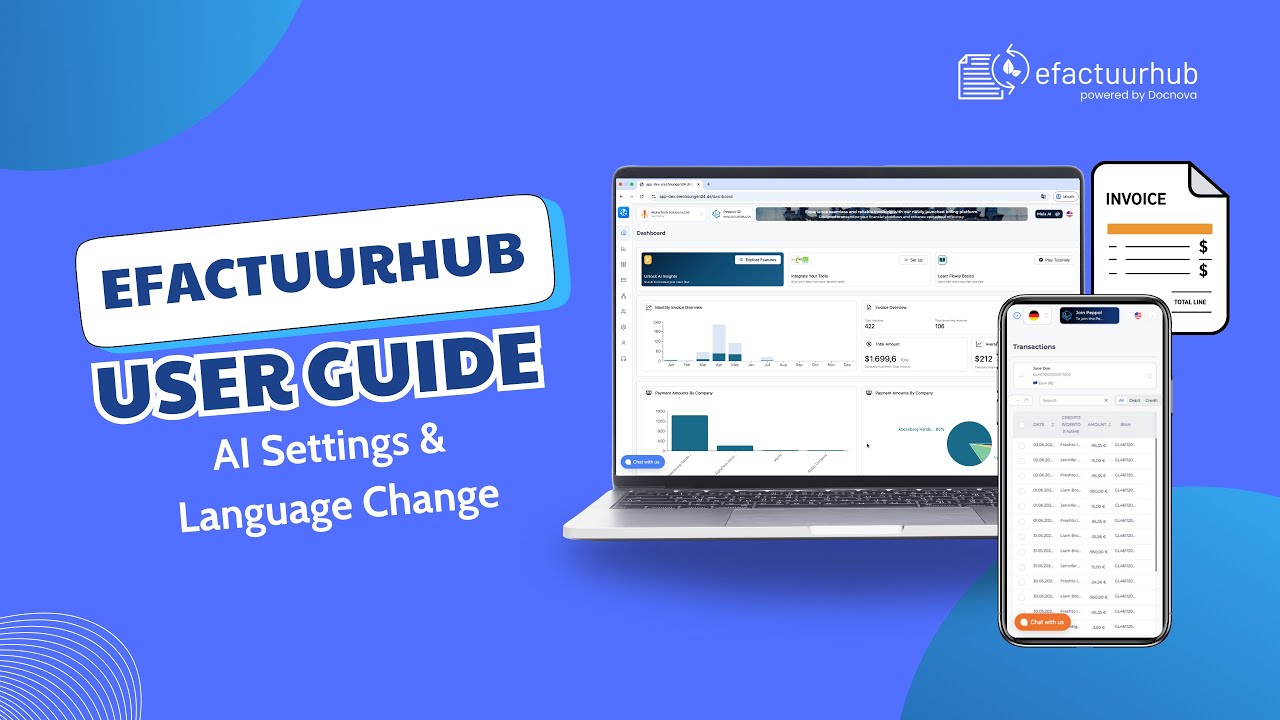
This guide video shows how to upload a PDF invoice or an image invoice and scan it with eFactuurhub AI OCR to capture invoice data automatically. Instead of typing fields manually, you can extract key details, review the results, and save the invoice to the system in seconds.
What you will learn
- How to upload PDF or image invoices
- How eFactuurhub AI OCR scans and extracts invoice fields
- How to review, correct, and confirm the captured data
- How to save the invoice quickly and continue your workflow
Try it here
https://app.efactuurhub.be/